How to Download an E-certificate and Receipt on IremboGov

Modified on Fri, 20 Nov at 9:01 AM

This article describes a step-by-step guide to how applicants can download their e-certificate or receipt on IremboGov. The applicant can download their receipt once their application has successfully been paid for. They can download their e-certificate once they have successfully applied, paid, and received approval for their application.


Prerequisites:

  • To download a receipt or an e-certificate, applicants should be logged in to their accounts or have an active number or email registered during the application process. Click here to find out how to create an account on IremboGov.

  • Applicants should have their application number or billing number.

  • Applicants should have a confirmation notification of approval from the responsible institution for them to download a certificate.

  • Internet access and a computer or smartphone should be available.


Follow these steps to download the e-certificate or receipt logged in your account.
Please swipe left to view the steps of your application.
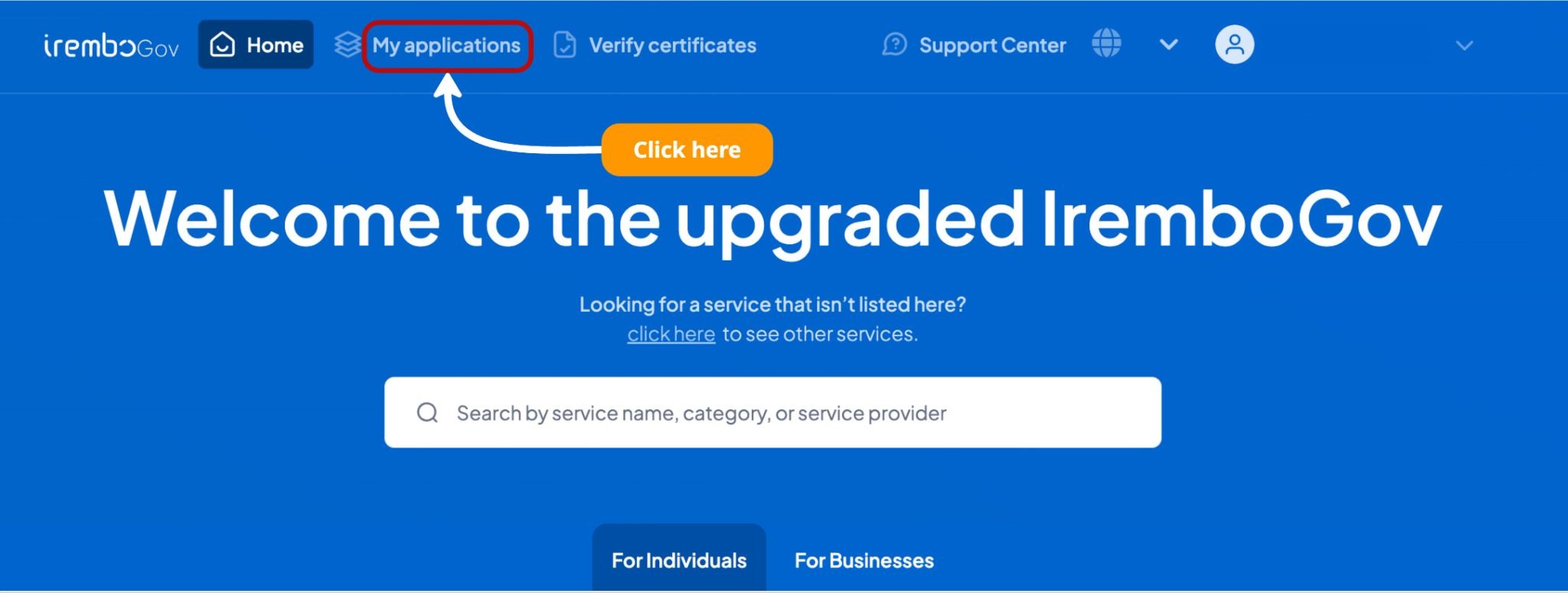
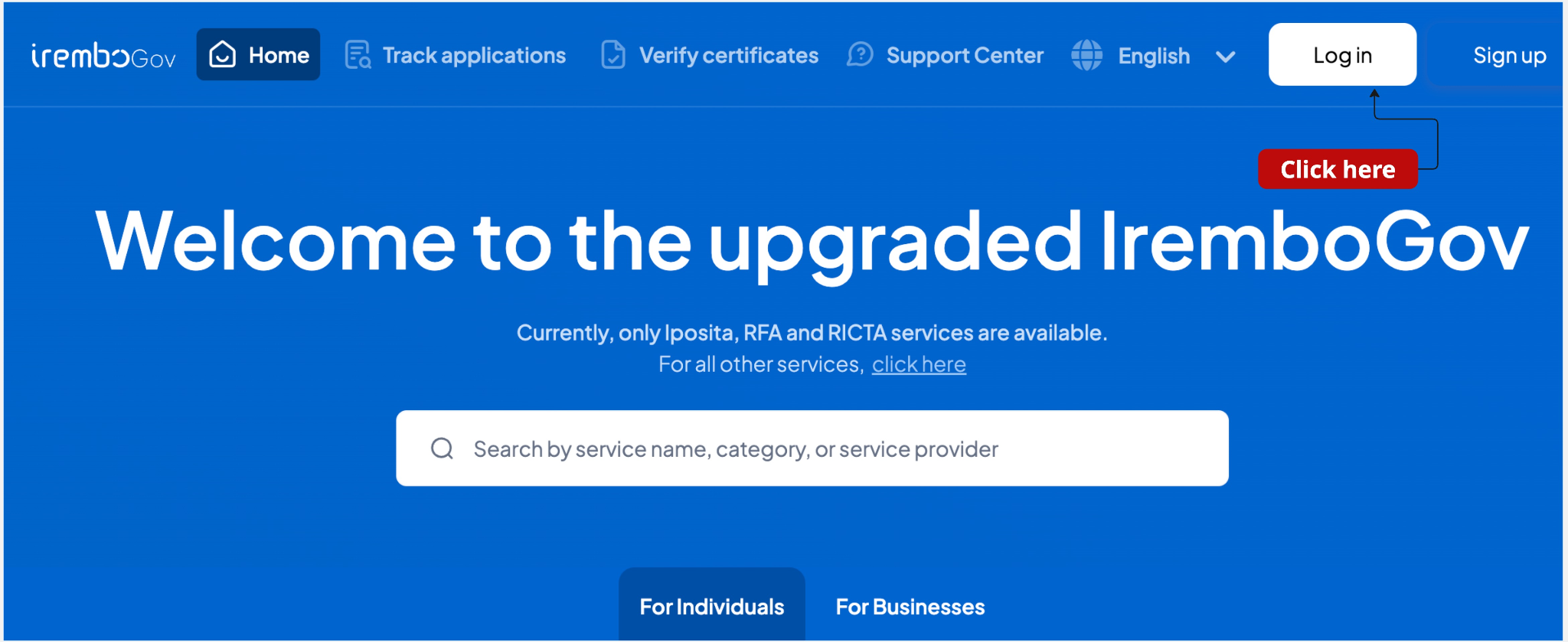
Step 1: Visit IremboGov at new.irembo.gov.rw and log in to your account. If you don’t have it, click here to learn how to create one.
Step 2: After logging in your account click on "My applications."
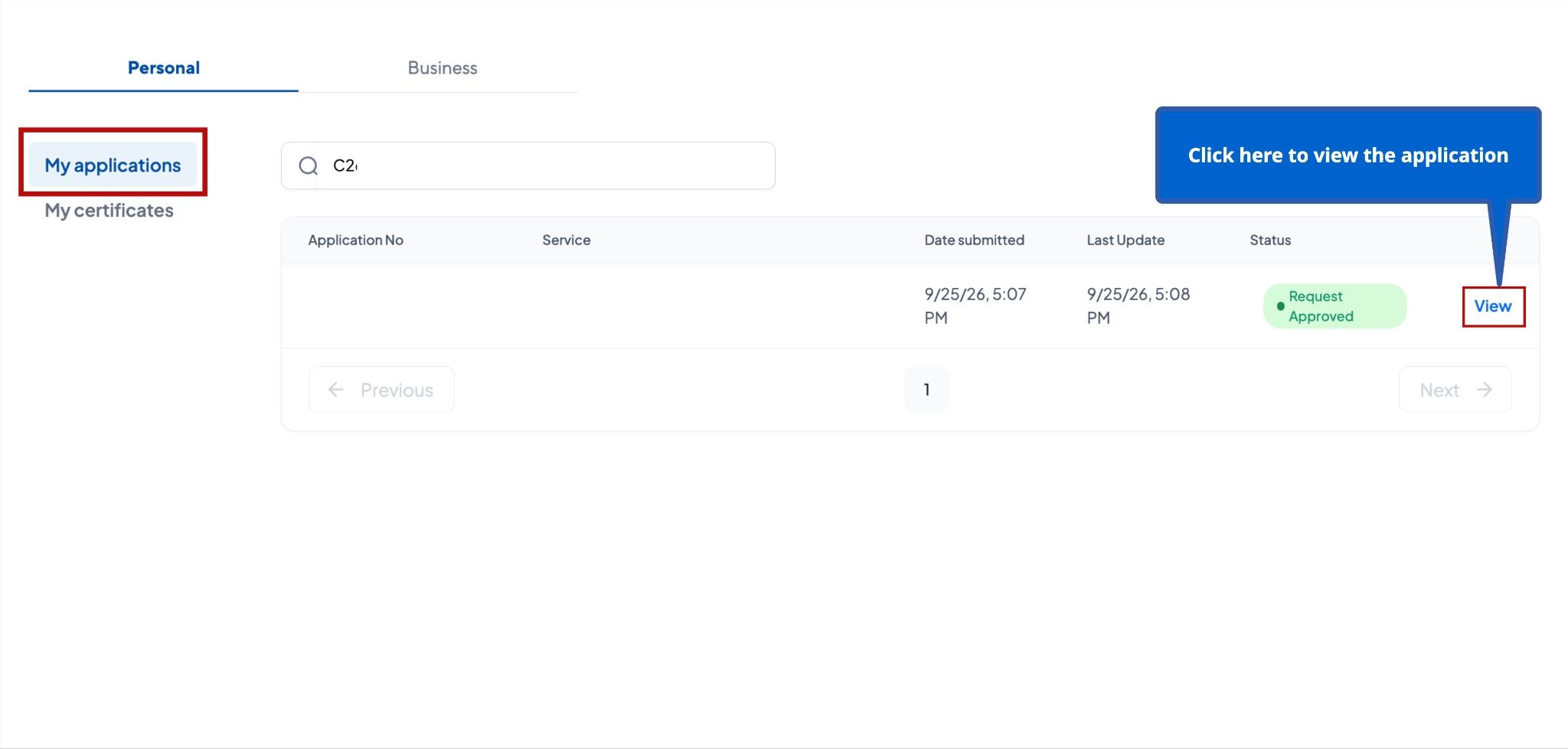
Step 3A: You will find your application under the list of applications you have applied for previously.
• A. If you want to download your receipt then click on “My applications”.
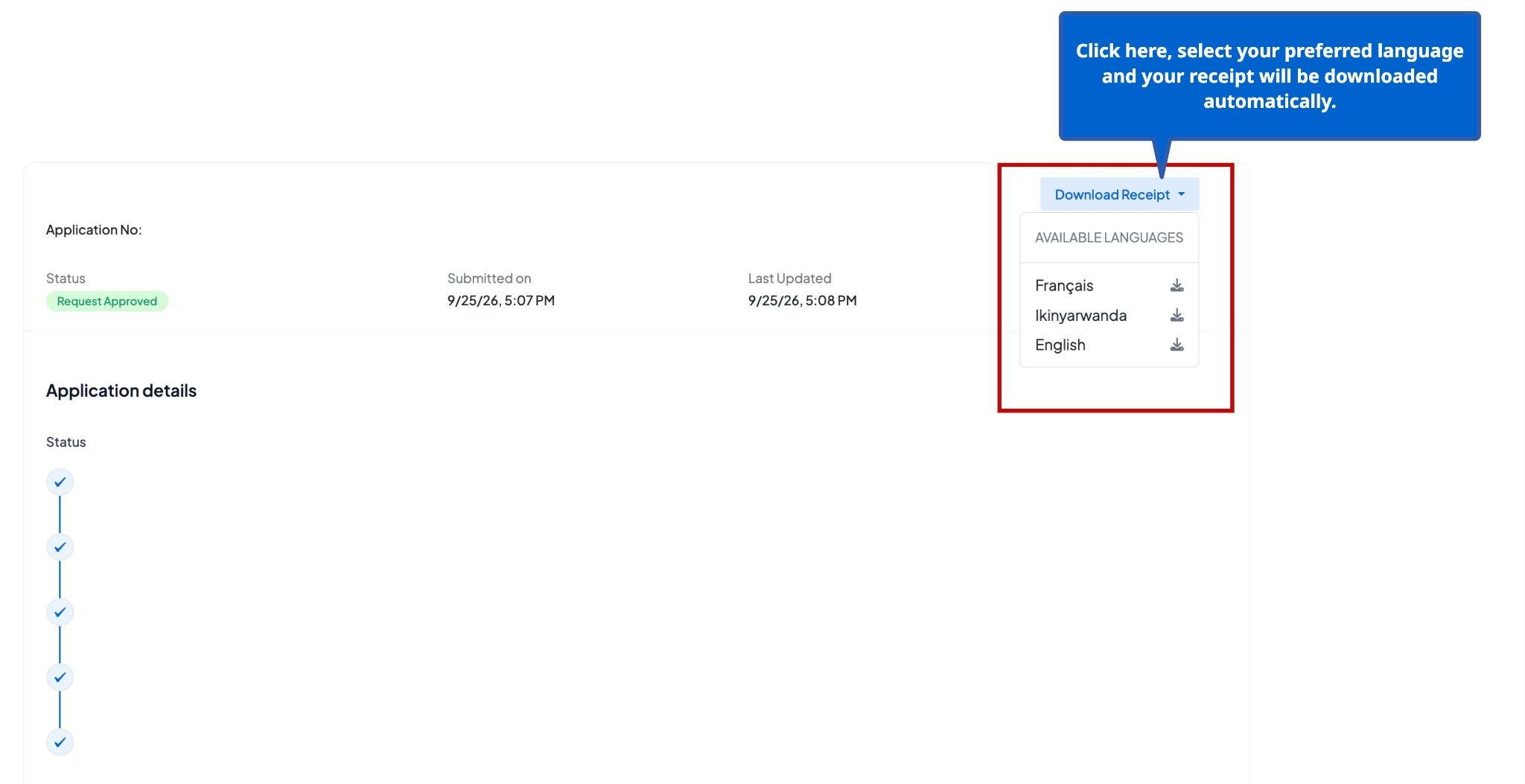
Step 3B: • B. Then to download the receipt.
❮ Step 4
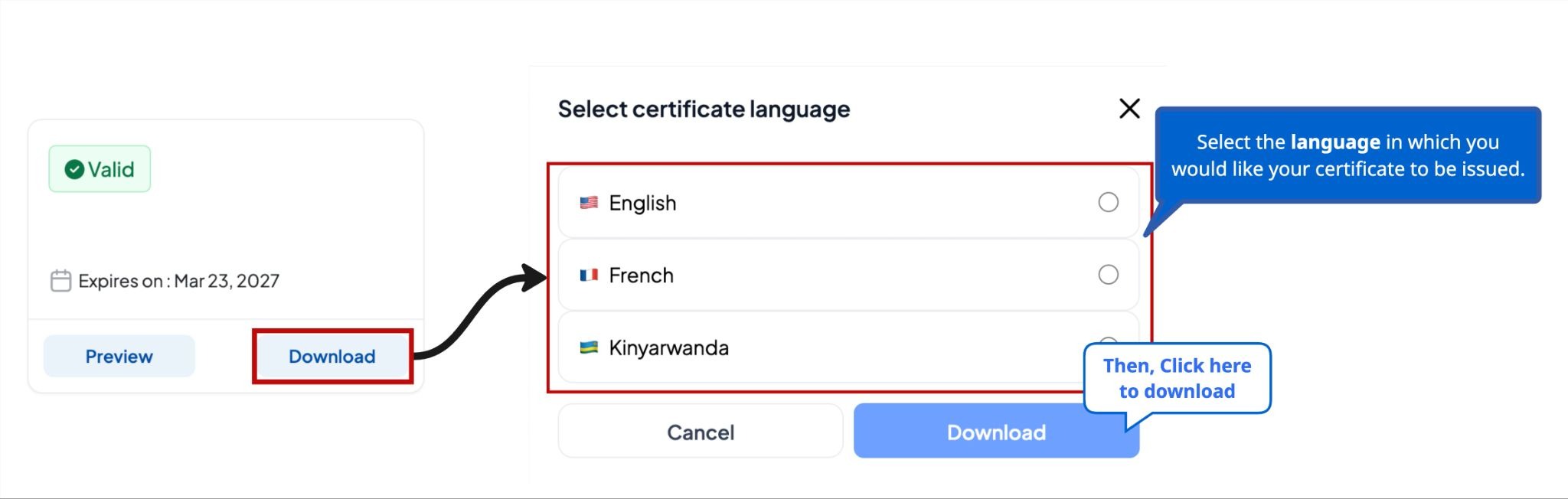
Step 4: To download your certificate, go to My Certificates, locate the certificate you wish to download and click "Download."


Download your e-certificate or receipt without logging in to your IremboGov account.


If you're not logged in to your Iremboaccount to download your payment receipt or e-certificate, password verification will be required and sent to the applicant’s phone number or email for verification.


Follow these steps to download the e-certificate or receipt outside of the account.

Please swipe left to view the steps of your application.
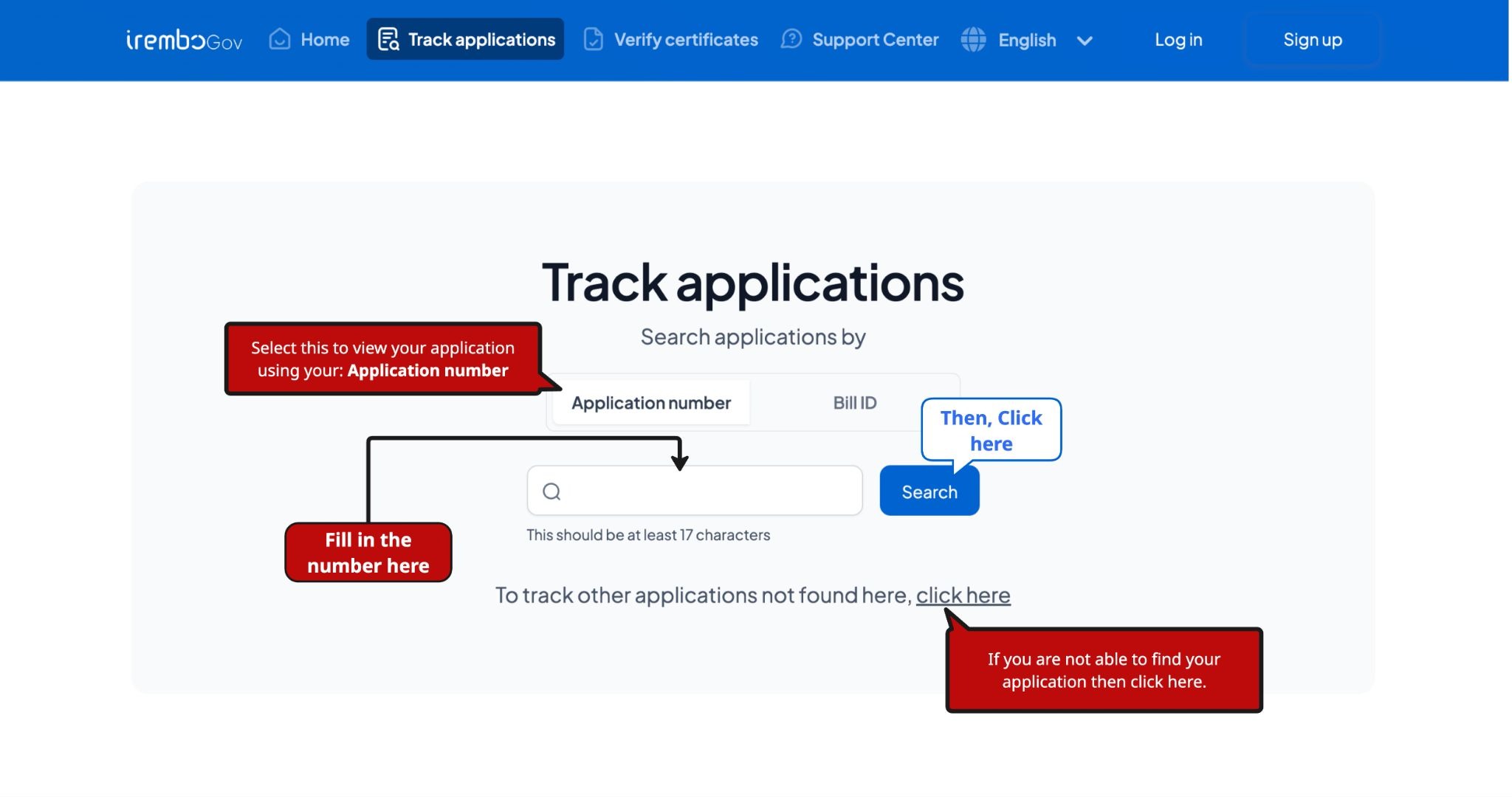
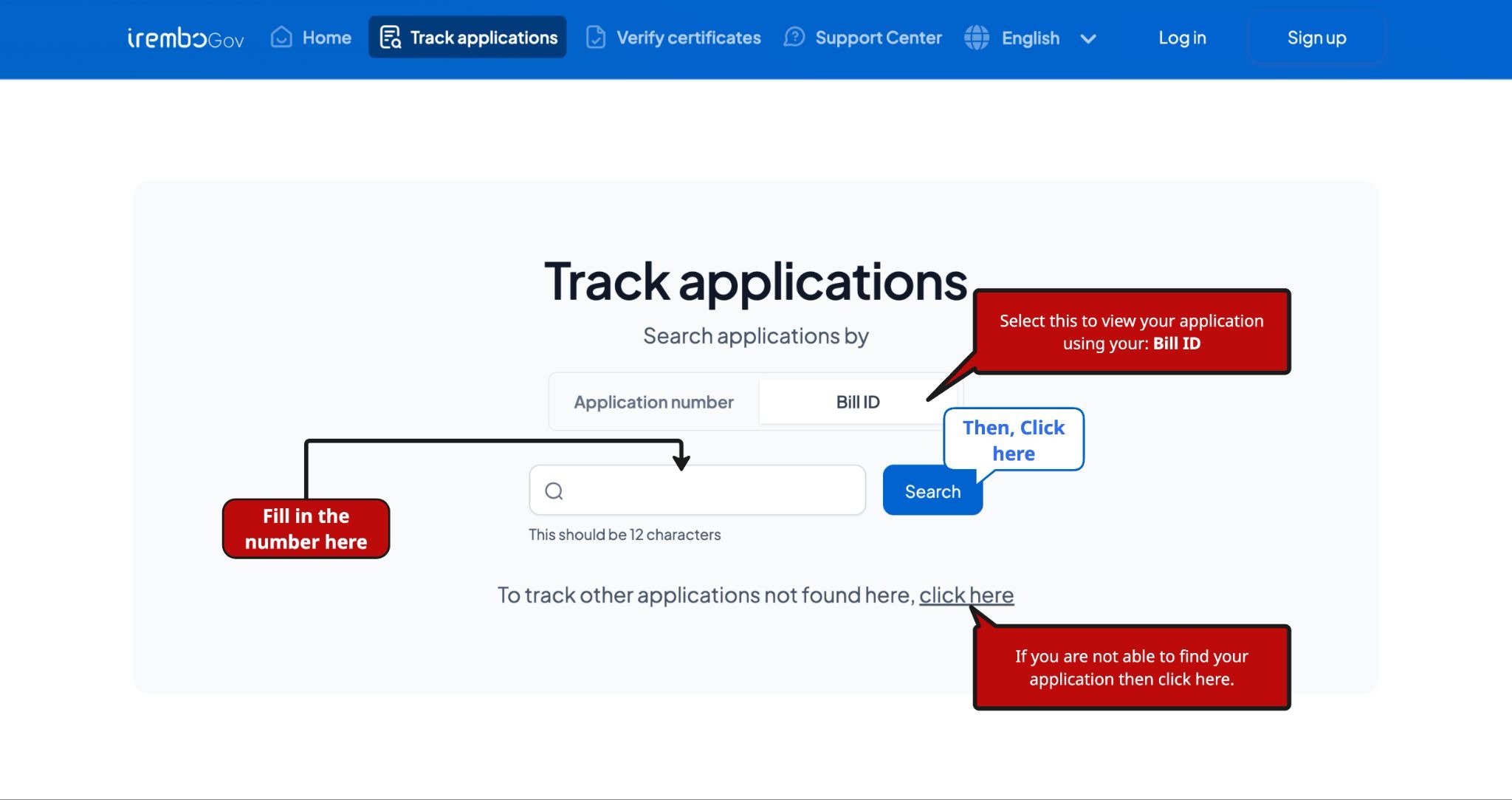
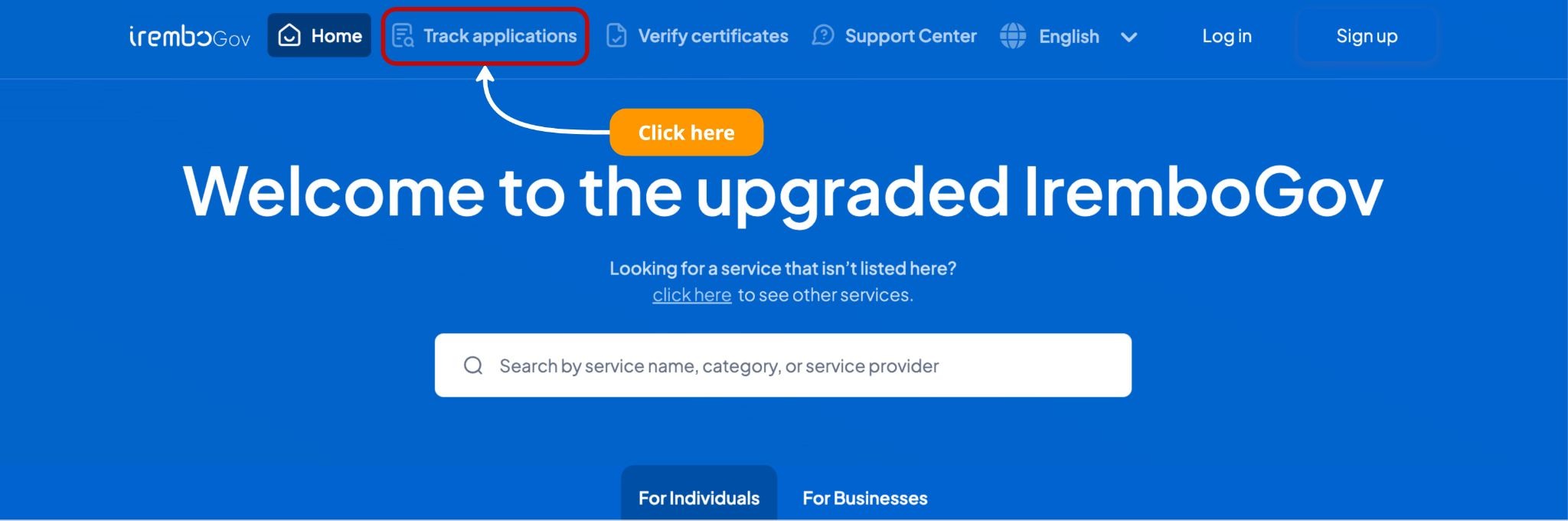
Step 1: Visit the Irembo platform at new.irembo.gov.rw and click "Track applications."
Step 2: Enter the application number/Bill ID in the search space and click the search button. Your application will be displayed.
• Scenario 1: You can download your e-certificate using your Application number.
• Scenario 2: You can download your e-certificate using your Bill ID.
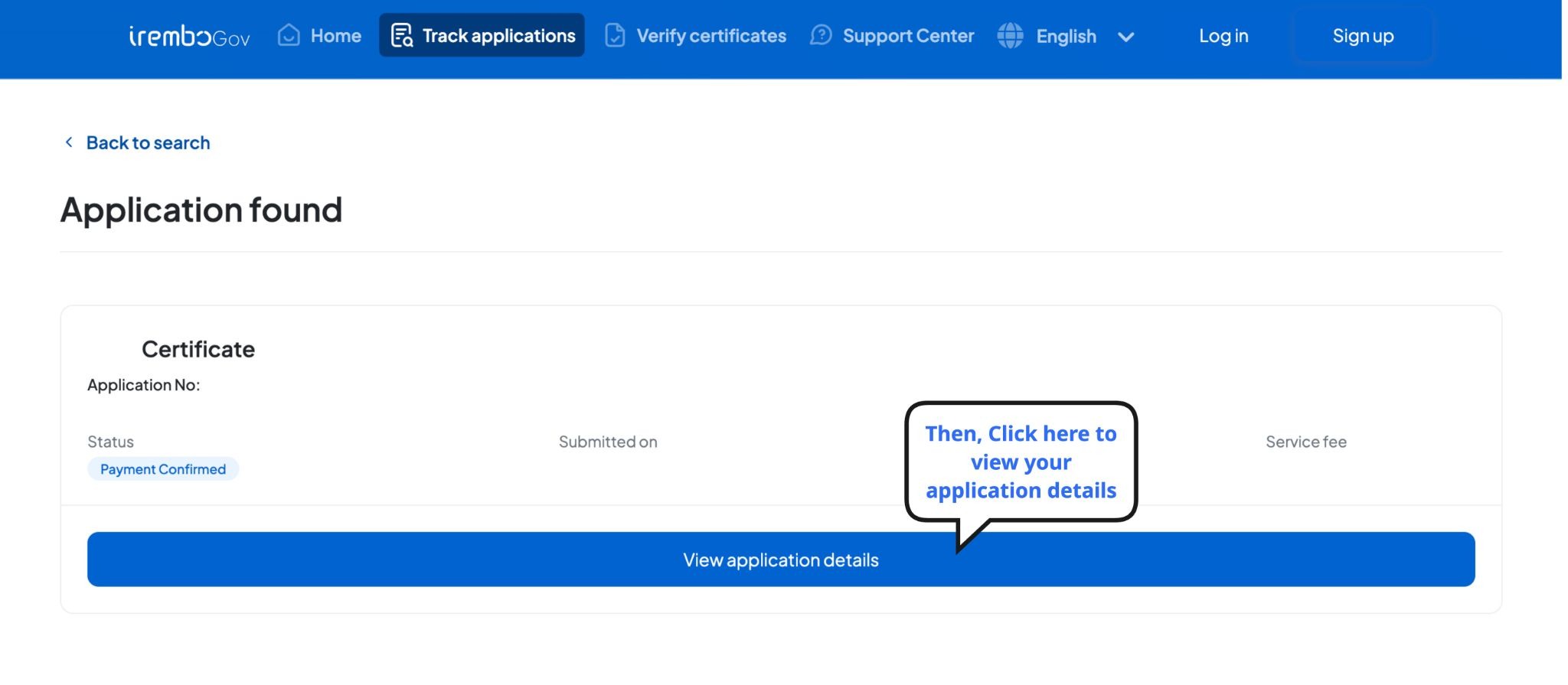
Step 3: A new page will open, where you can view your application details.
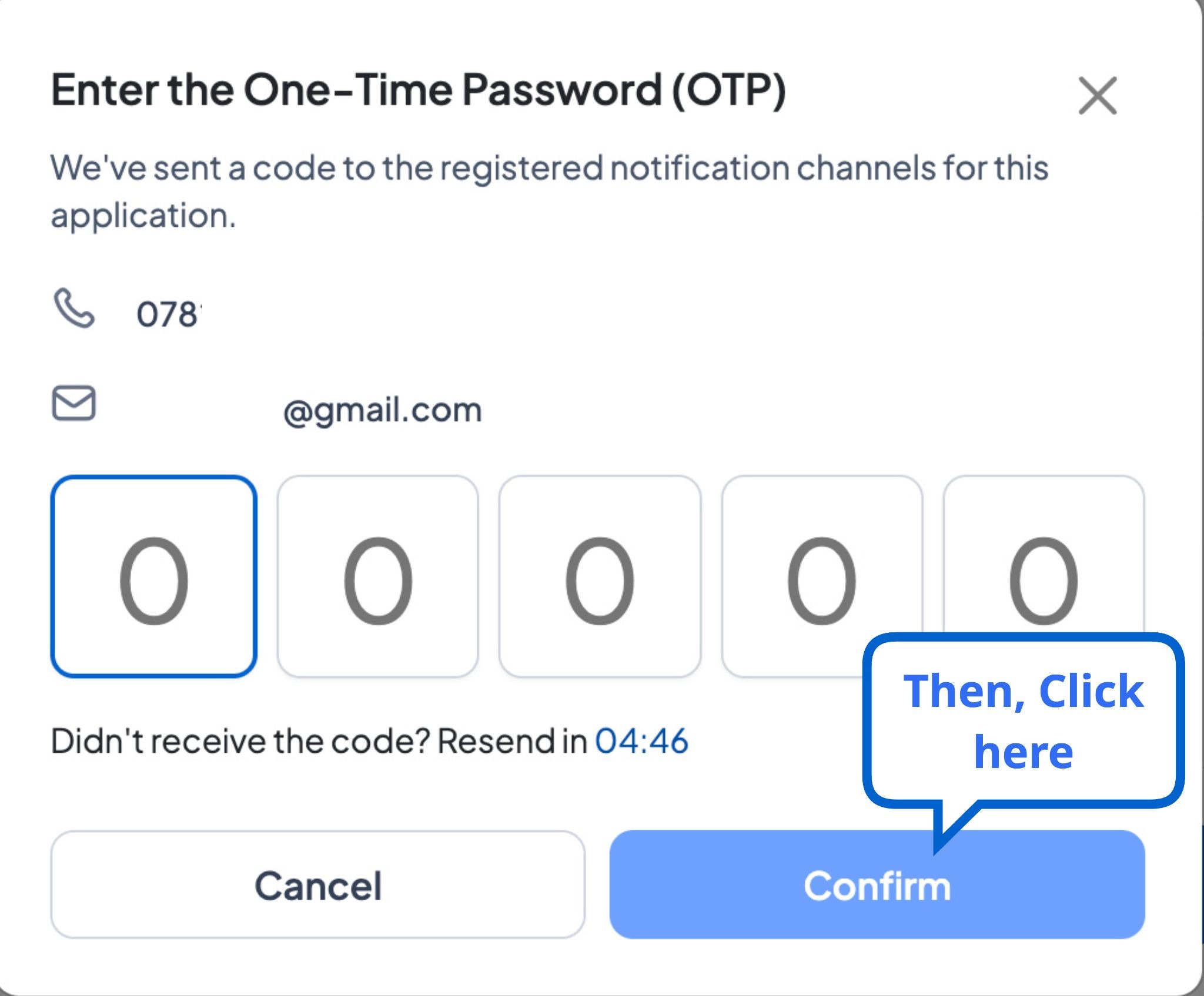
Step 4: Enter the one-time password (OTP) you received and click "Confirm."

Note: If your OTP expires, click "Resend OTP" to receive a new OTP.
❮ Step 5
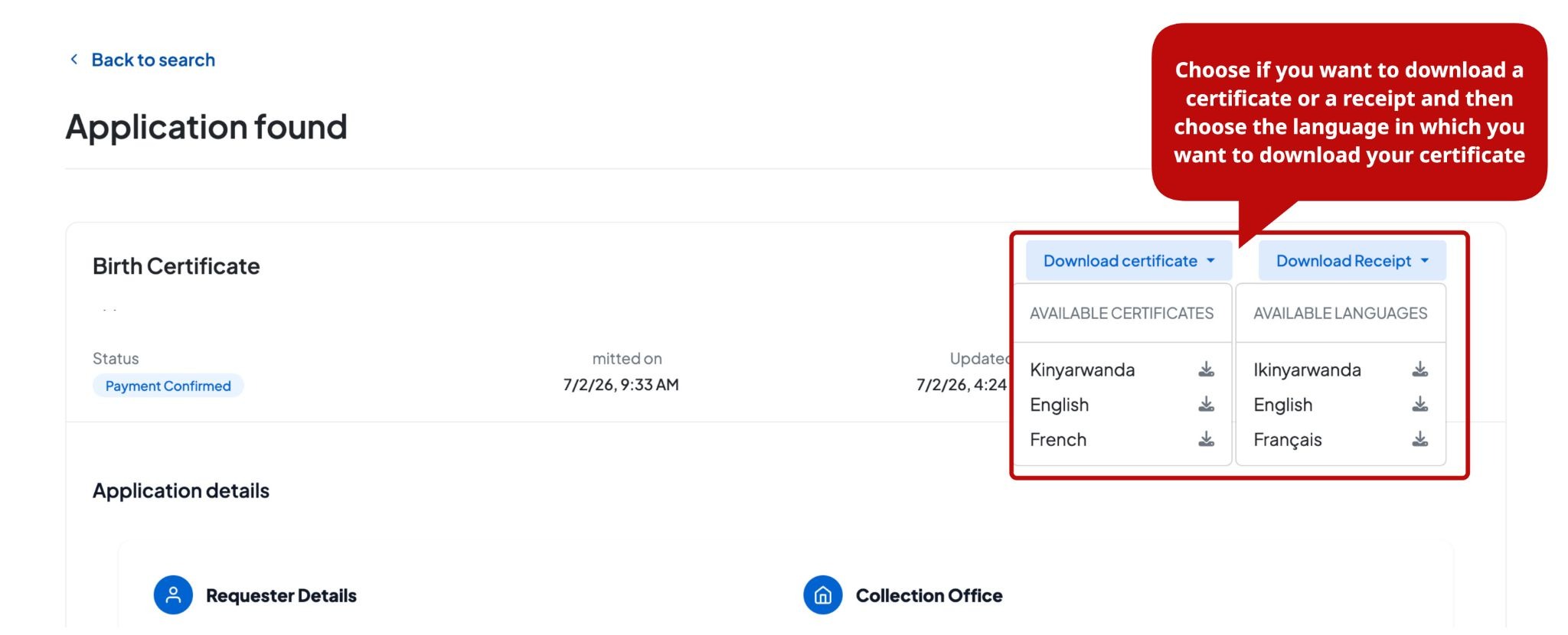
Step 5: Select whether you want to download your certificate or your receipt, then click on "Download certificate" or "Download receipt," depending on what you want to download, and choose the language.


Now you are good to go! Your e-certificate or receipt is available for download.

Was this article helpful?

That’s Great!

Thank you for your feedback

Sorry! We couldn't be helpful

Thank you for your feedback

Let us know how can we improve this article!

Select at least one of the reasons
CAPTCHA verification is required.

Feedback sent

We appreciate your effort and will try to fix the article